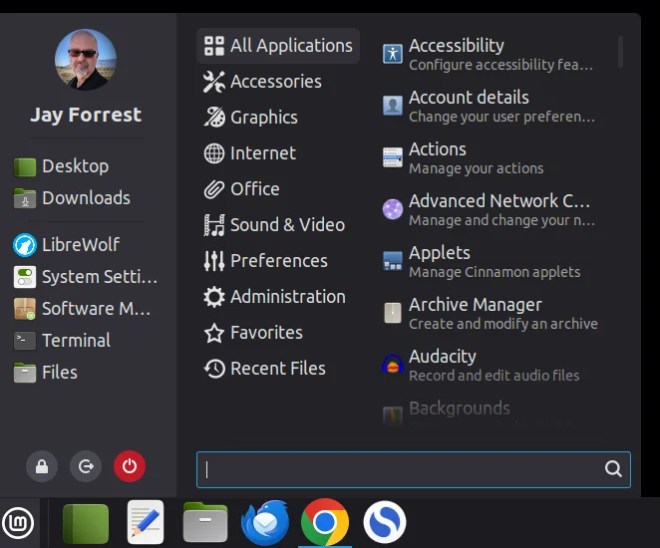
Programs I Install on Linux Mint 21.3

Programs I install

  • Google Chrome (Directly from Google)
  • Simplenote (Flatpak)
  • BibleTime (System Package)
  • GIMP (Flatpak)
  • Calibre (System Package)

I do not recommend using the Flatpak to install Chrome. It is an unverified Flatpak. In fact, in Linux Mint 22 unverified Flatpaks are disabled by default. Download Chrome here. Choose “64 bit .deb (For Debian/Ubuntu)”

Desklets I use

  • Battery Level Indicator by schorschii
  • Disk Space by schorschii
  • Timelet by slgobinath
  • Weather by tipichris

For the weather desklet, I recomende using the Data service Open-Meteo Non-commercial. Just use that latitue and laungitude in this format: 35.03,-106.68

I will probably also install Zoom and Cheese. But we will see.

I use a laptop, so I need a battery level indicator. I don’t like the default one for the task bar. I used the Desklet above until today. I now use Battery Applet with Monitoring and Shutdown (BAMS) on the taskbar. I recommend reading the following if you are interested: https://cinnamon-spices.linuxmint.com/applets/view/255

Switching Back to Linux Mint, Ubuntu Derivative

I have been using Linux Mint Debian Edition for about two years. It is a solid distro.

But I am tired of it being a second class priority. The majority of the time and energy does into the main distribution, the one based on Ubuntu.

Today, I have switched back to the main Linux Mint Cinnamon edition. I am now running Linux Mint 21.3.

Linux Mint 22 is set to release, most likely in August. Linux Mint 22 is in beta now.

Cannot mount memory stick

I have a ScanDisk 1T Drive that I could not mount. This is how I fixed it.

1. Open “Disks” application (gnome-disk-utility 3.38.2)

2. Select the device on the left side, then…

3. Click on the gear Icon “Additional partition options”

4. Select “Repair Filesystem” – let it finished (it should say repaired)

5. Now try mounting the USB drive.

If that doesn’t work, you might have to reformat and start from scratch. But check Linux Mints blog for other things to try.

Acer Swift 3 Touchpad Tap to Click

I hate to confess, but it took me way too long to figure out the solution to this problem.

For some reason, my touchpad stopped letting me tap the pad click. After some time I finally figured out that in settings a toggle was turned off. All I had to do was turn it on.

simple.

Some Update Manager Errors (LMDE)

July 3, 2022, I went to update link and got this error

W: failed to fetch http://packages.linuxmint.com/pool/main/m/mintupdate/mintupdate_5.8.4_all.deb Connection timed out [IP: 68.235.39.11 80]

To fix, I closed the Update Manager, and then I opened a terminal session and entered:

sudo apt update

Hit enter, and enter your password. It will update the system, minus the Mint Update Manager. Then relaunch the Update Manager and run it. Everything should install fine.

Problem solved.

Work on Google Docs Offline

Before you turn on offline access

  • You must be connected to the internet.
  • You must use the Google Chrome or Microsoft Edge browser.
  • Don’t use private browsing.
  • Install and turn on Google Docs Offline Chrome extension.
  • Make sure you have enough available space on your device to save your files.

How to turn on offline access

  1. Open Google Drive.
  2. At the top right, click Settings Settings and then Settings.
  3. Turn on Offline setting
    1. If you are using Microsoft Edge, you will be redirected to the Chrome Web Store to download the Google Docs Offline extension.
  4. To work offline, open Google DocsSheets, or Slides

Tip:

  • You can turn on offline access from Docs, Sheets, or Slides settings. If you turn on offline access for Docs, Sheets, Slides, or Drive, then the rest will also be available offline.
  • Alternatively, to turn on offline access, open any Google document, spreadsheet, or presentation. At the top, next to the file title, click See document status Cloud done and then Turn on and then Turn on.
  • If you want to use offline access for another Google Account, make sure you’re signed in to the right Chrome or Edge profile. Learn how to switch Chrome profiles.

Source: https://support.google.com/docs/answer/6388102?hl=en&co=GENIE.Platform%3DDesktop

LMDE 5 “Elsie” released!

Linux Mint Debian Edition version 5 has just been released. As I mentioned in my last post, I have switched my laptop to the beta version of LMDE 5.

If you are using LMDE 5 BETA, you don’t need to upgrade. Run the following commands:

apt install network-manager-config-connectivity-debian plymouth-label pipewire plocate
apt remove mlocate brltty
sudo updated

That will update you to the final release.

Links

Linux Mint Blog: LMDE 5 “Elsie” released!

Linux Mint Debian Edition 5

The time has come to drop Ubuntu. They continue to disregard users and go against their wishes.

So I just downloaded and installed Linux Mint Debian Edition 5 Beta on my laptop. It only comes with the Cinnamon desktop, which is fine. I love the Cinnamon desktop.

I am transitioning all my computers over to Linux Mint Debian Edition 5 as soon as the final release comes out. I suggest you wait as well. Also, do a live boot to make sure everything works. Nvidia drivers seem to be problematic for so people..

System requirements:

  • 2GB RAM (4GB recommended for a comfortable usage).
  • 20GB of disk space (100GB recommended).
  • 1024×768 resolution (on lower resolutions, press ALT to drag windows with the mouse if they don’t fit in the screen

Links

LMDE 5 “Elsie” – BETA Release
Release notes
Linux Mint Installation Guide
Cinnamon BETA Edition

Video Issues With AMD Ryzen 7 4700U with Radeon Graphics × 8 on Linux Mint 20.2 Cinnamon

Every time I would boot the computer it would go to the screen with the Linux Mint icon and then it would go to static. It looked like the old TVs when the channel would go off the air.

In order to get into the system, I had to reboot, hit Esc, and choose the restore option. Then I would be able to log in. At which time it told me that I was running without video drivers. If I clicked on the video manager it would tell him I didn’t need any drivers.

The problem is that the Linux Kernal I was using did not support my laptop. So the solution was to update the Linux Kernal to the newest Kernal, which right now is 5.15.1.

Now, how to you do that? This article gives you the basics: https://www.fosslinux.com/7167/how-to-upgrade-linux-kernel-in-ubuntu-and-linux-mint.htm

You can skip steps 1, 2, and 3. After 2021, you might want to double-check for the latest Kernal.

Of course, the article is old and the Kernal is old. So on step 4 substitute the following: (You can copy and paste it in the terminal, it will download all four of these).

wget https://kernel.ubuntu.com/~kernel-ppa/mainline/v5.15.1/amd64/linux-headers-5.15.1-051501_5.15.1-051501.202111061036_all.deb
wget https://kernel.ubuntu.com/~kernel-ppa/mainline/v5.15.1/amd64/linux-headers-5.15.1-051501-generic_5.15.1-051501.202111061036_amd64.deb
wget https://kernel.ubuntu.com/~kernel-ppa/mainline/v5.15.1/amd64/linux-image-unsigned-5.15.1-051501-generic_5.15.1-051501.202111061036_amd64.deb
wget https://kernel.ubuntu.com/~kernel-ppa/mainline/v5.15.1/amd64/linux-modules-5.15.1-051501-generic_5.15.1-051501.202111061036_amd64.deb

Step 5. Now install the downloaded packages. Copy and paste in terminal:

sudo dpkg -i *.deb

Step 6. After successful installation, reboot your machine.

It solved my problem, I hope it fixes yours as well.